A gallery for life after Samsung Gallery’s OneDrive sync
Your scattered photos, one timeline.
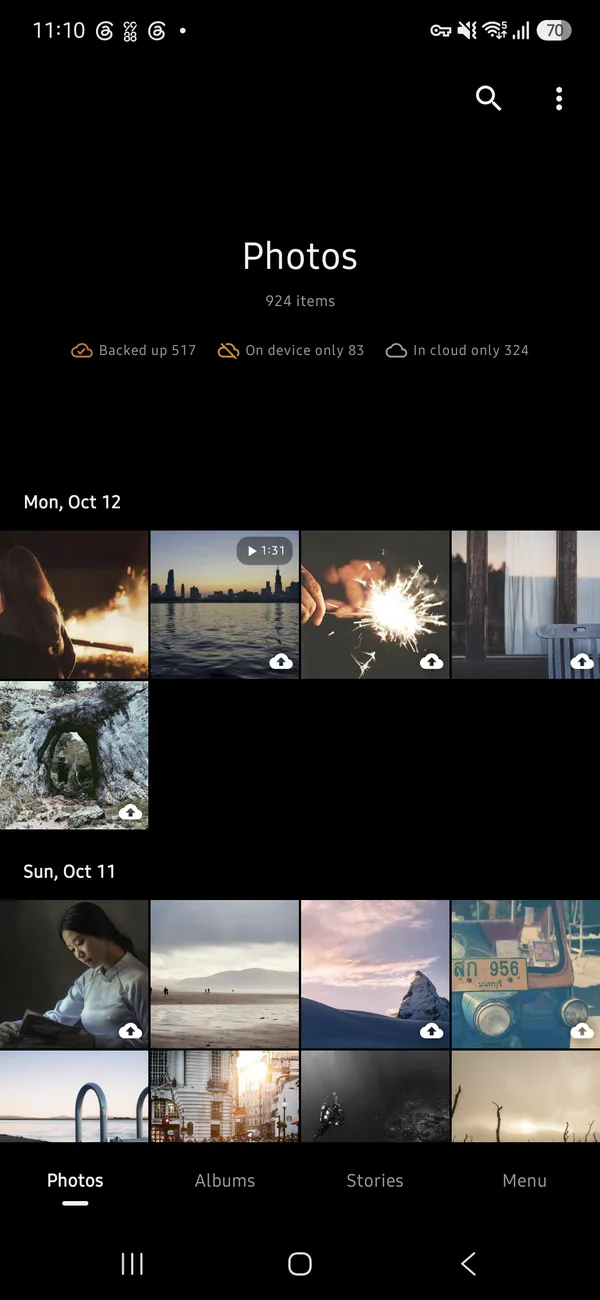
Today’s photos on your phone and years-old photos left only in OneDrive, shown together in one timeline. No need to care whether a photo is on your phone or in the cloud. Just open it like the Samsung Gallery you’re used to.
Thank you so much for stopping by.Just reaching this page means a lot to me. I built Miettes as the gallery I use every day, and I’m sharing it in the hope that it helps others with the same problem.
— Croissant Mouse (@croissmouse)
What the name means
Photos are crumbs of the time we’ve lived
Miettes is French for “crumbs, little pieces.” Like the crumbs left after a croissant, photos felt to me like small moments and fragments of memory that fall away from everyday life.
On September 30, 2026, Samsung Gallery’s OneDrive sync ended. From that day, old photos that lived only in OneDrive vanished from the gallery, and cloud photos could only be seen by opening the OneDrive app separately. And with limited phone storage, you can’t keep every photo on the phone either.
So I wanted just one thing: to keep using Samsung Gallery as if nothing had happened.
What I wanted to keep
A gallery with nothing new to learn
The experience you already know
One UI–style tabs and large titles, pinch to zoom between 2 and 12 columns, long-press and drag to select, swipe up for details: it follows how Samsung Gallery behaves. Tap Edit and Samsung’s photo and video editors open directly, and backups go to the same Samsung Gallery folder in OneDrive that Samsung used.
No extra phone storage
Cloud photos stay in the cloud while you view them. Only thumbnails are cached on the phone (up to 1 GB, oldest cleaned up automatically), and originals are loaded or streamed only when you open them.
Your photos’ safety comes first
Every upload is checked against OneDrive’s hash to make sure it arrived intact. Free up space only deletes verified photos, and it’s off by default. Deleted photos can be restored from the trash for 30 days, and a safeguard stops deletion if too many photos disappear at once.
Your photos stay between you and Microsoft
There’s no separate server. Your phone talks directly to Microsoft’s official API, and you sign in on Microsoft’s own sign-in page. I never receive your photos or account information.
What you can do
Phone photos and cloud photos on one screen
One timeline
Merges phone and OneDrive photos by date and shows duplicates as one.
See where each photo lives
Backed up, device only, cloud only, waiting to upload, failed: told apart with icons and filters.
Automatic backup
Uploads new photos to OneDrive and resumes large files. Photos edited on the device replace the same file.
Edit with Samsung’s editors
Photos and videos open straight in Samsung’s editors. For photos only in OneDrive, the original is downloaded and handed over.
Stories
On this day N years ago, plus busy days and trips, grouped automatically.
Search
Find by file name, date (2024, 2024.5), album, videos, favorites, or GIF.
Built-in player
Videos play inside the app, and cloud videos stream without downloading. Motion photos and GIFs move too.
Share and tidy up
Share many cloud photos at once. Plus albums, trash, and cleanup for screenshots, duplicates, and large videos.
Install and first setup
Back up and running in 5 minutes
Download and install the APK. Tap Download on your phone and allow installing unknown apps.
Allow access to all photos and videos. Which permissions are used and why is explained below.
Menu → OneDrive → Microsoft sign-in (personal Microsoft account).
Check the folders to import. When you sign in, Miettes finds your Samsung Gallery and Camera Roll folders automatically, whatever language your OneDrive uses. If you use different folders, change them in the Menu.
Once the folders show “up to date” (the first indexing takes a few minutes), turn on auto-upload new photos and allow the battery optimization exemption.
What it asks the first time
Permissions and Microsoft sign-in
Miettes asks for the permissions it needs all at once when you first open it. Here’s what each one is for. It doesn’t use contacts, microphone, camera, or device location.
Phone permissions
Photos and videos Required
Used to show your phone photos in the timeline and back up new ones. Be sure to choose Allow all. If you pick “Selected photos only,” only those photos appear and new photos aren’t backed up automatically.
Location in photos
Used to back up photos with their capture location intact and to show it on a map in details.
Notifications
Lets you know about backup progress, when you need to sign in again, and when backups have been stuck for a long time. The app works fine with them off.
Battery optimization exemption Optional
Keeps backups running while the screen is off. It isn’t requested at first; you can turn it on in Menu → Permissions and battery. You can also request permissions again from there.
When deleting or changing photos
Android shows one extra confirmation when you delete, move, rename, or rotate. That’s because apps can’t freely modify photos created by other apps, such as the camera.
Microsoft sign-in
Tap Menu → OneDrive → Microsoft sign-in and Microsoft’s sign-in page (login.microsoftonline.com) opens in your browser. You type your password only on Microsoft’s page, so Miettes never sees it.
After you sign in, Microsoft shows a consent screen. Miettes asks for three permissions.
Read and write files: used to show your OneDrive photos and upload new ones. Because of how Microsoft permissions work, it’s shown as access to all of OneDrive, but Miettes only reads the photo folders you set, and only writes photos it backs up or that you delete, rename, or share as links.
Stay signed in: so you don’t have to sign in every time you open the app.
Read basic profile: used to show the signed-in account in the menu.
Sign-in data stays only in the app’s storage on your phone and is never sent anywhere but Microsoft. It’s also excluded from phone backups.
To disconnect, tap Menu → OneDrive → Sign out in the app, or remove access under Microsoft account → Privacy → “Apps and services that can access your data.”
Before you start
What doesn’t work yet
Built and tested for Android 13+ on Samsung Galaxy (Galaxy S24 and an Android 13 emulator). Other phones haven’t been tested, and Samsung editor integration only works on Samsung phones.
Personal OneDrive only. Work and school accounts haven’t been tested.
It’s not a Play Store app. You install it yourself and there are no automatic updates, so get new versions from this page.
Tapping the thumbnail in the camera app still opens Samsung Gallery. Samsung Camera decides that, and it can’t be changed.
Miettes doesn’t appear as a picker when you attach photos in other apps (like messengers). For photos only in OneDrive, send them with Share in Miettes.
Searching by what’s in a photo (like “beach” or “dog”) and face recognition aren’t available yet.
Motion photos only move when they’re on the device. Cloud-only motion photos show as still images.
Saving in Samsung’s editor creates a new copy, so the edited version appears separately in the timeline.
Uploads follow Android’s background rules, so they may not happen right away.
When you also delete from the device a photo deleted in OneDrive, Android shows a confirmation once.
All the scattered pieces, back in one place
Wherever those pieces are scattered, I wanted you to be able to look back on them easily, in one place. Give it a try, and if anything bothers you or there’s something you’d like, please let me know. I’ll read every message carefully.
 Miettes